Badge Generation System
How to generate fully customizable event badges and integrate them with Event Vault's guest systems.
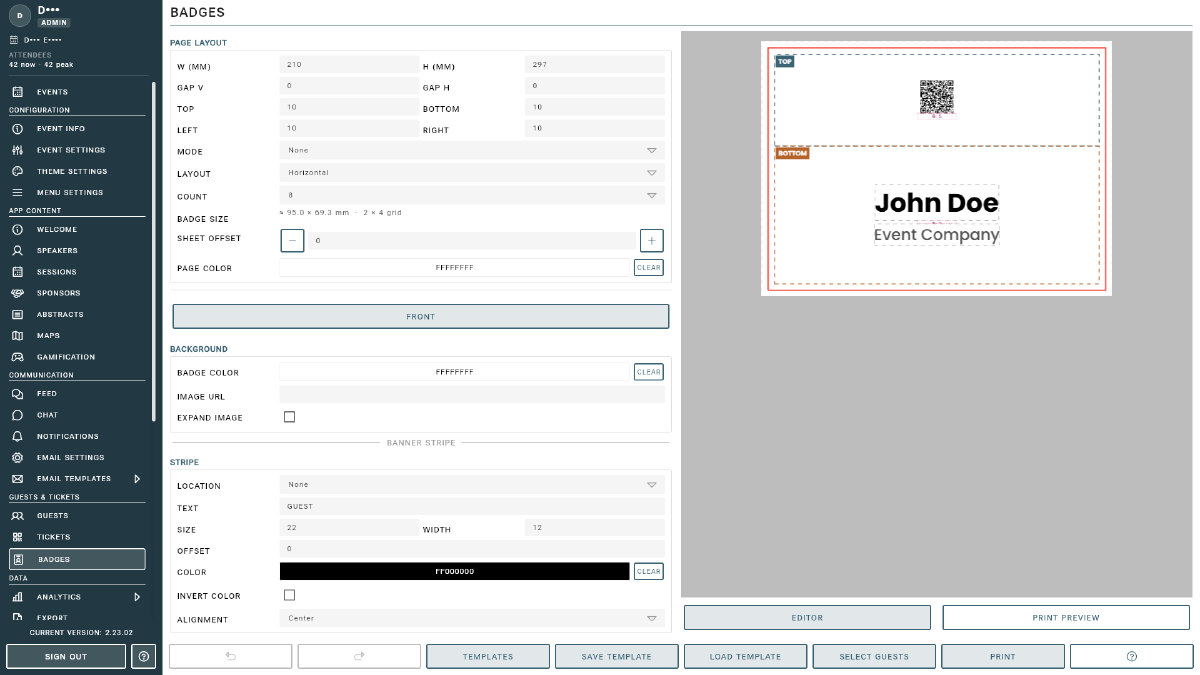
Event Vault includes a powerful badge generation system that lets you design fully customizable, print-ready badges for your event attendees. Badges are automatically linked to your guest data and can be generated as a PDF for printing.
Key Features
- Customizable Design: Design badges to match your event branding, including logos, colors, attendee names, QR codes, and more.
- Integrated with Ticketing & Guest Systems: Badges are automatically linked to Event Vault’s ticketing, V Card, and guest management systems for seamless compatibility.
- Automatic Updates: If a guest’s data (such as email) changes, their badge is automatically updated to reflect the new information: no manual intervention required.
- Free for All Events: Badge generation is included at no extra cost for all Event Vault customers.
Setting Up Your Badge Layout
In the Badge Generation section, configure the physical layout of your badge sheet:
- Orientation: Choose Horizontal or Vertical badge orientation.
- Page Size: Set the physical page dimensions (width x height in mm) to match your print paper.
- Margins: Configure top, bottom, left, and right page margins independently.
- Badge Spacing: Set the horizontal and vertical spacing between badges on the page.
- Print Mode: Choose from:
- Single-Sided: standard one-sided badge.
- Double-Sided: prints a front and back for each badge (requires printer support).
- Folded Horizontal: folds horizontally, creating a tent-card style badge.
- Folded Vertical: folds vertically for a standing card.
Designing Your Badge
Upload a background image (logo, pattern, or full bleed design) for the front, and for the back if using double-sided or folded mode.
Add elements to your badge. Each element can be:
- Text field: displays guest data (name, company, role, email) or static text.
- QR Code: generates a unique QR code per attendee, either a scannable vCard (name, email, organization, role, phone) for instant contact exchange, or a custom URL.
- Image: place a logo or graphic from an image URL.
For each element, configure:
- Font family: Roboto, Helvetica, Times, Courier, Open Sans, Lato, Oswald, Montserrat, Work Sans, or Poppins
- Font size, Text color, and Bold toggle
- Padding above and below the element, and which section it belongs to
Badge content is arranged in two sections that you can place side-by-side or stacked, with an adjustable split ratio and independent vertical (top / middle / bottom) and horizontal (left / center / right) alignment for each section.
- Stripe: add a colored banner with optional text on the top, left, right, or bottom edge of the badge.
- Templates: start from a ready-made design (Conference, Speaker, Exhibitor, VIP, Crew, Networking, and more) and customize it. Save and Load your own designs as reusable template files, and Undo/Redo any change.
Personalising Badges with Guest Data
Text elements and QR codes are filled in per attendee using placeholders. Add any of these to a text field (or to a custom QR URL) and they are replaced with each guest’s data when badges are generated:
{NAME}, {EMAIL}, {ORG}, {ROLE}, {TEL}, {URL}, {COUNTRY}, {TYPE}
In the Management Console, badges use your event’s guest list automatically. You can also import a guest list from a CSV to personalise badges — it uses the same format as the guest importer.
CSV Data Format
Format of the guest CSV file for badge personalisation, including headers and example rows.
| Header | Format | Contains | Required |
|---|---|---|---|
| String | Guest Email | YES | |
| NAME | String | Guest Full Name or First Name | |
| SURNAME | String | Guest Surname | |
| ORG | String | Guest Organization | |
| ROLE | String | Guest Role | |
| TEL | String | Guest Phone Nr with Country code if available | |
| URL | HTTPS | A URL the guest could set or provided during sign up | |
| COUNTRY | String | Guest’s country of origin | |
| TYPE | String | Guest Registration Type |
Previewing & Printing
- Use Editor preview to render a single badge and check your design as you edit.
- Switch to Print Preview to see the full sheet layout across the page.
- Select the guests to include, all guests or a filtered subset.
- Click Print to create a full print-ready PDF with all selected badges laid out on pages.
- Download the PDF and send it to your printer.
Tips
- Include a QR code on every badge for fast check-in at the door.
- Add V Card links to make it easy for attendees to exchange contact information.
- Match badge colors and branding to your event theme for a professional look.
- Use high-resolution background images, low-resolution images will appear blurry in print.