Documentation
App Design: Theme
How to set the app's colours to match your event, with a live preview.
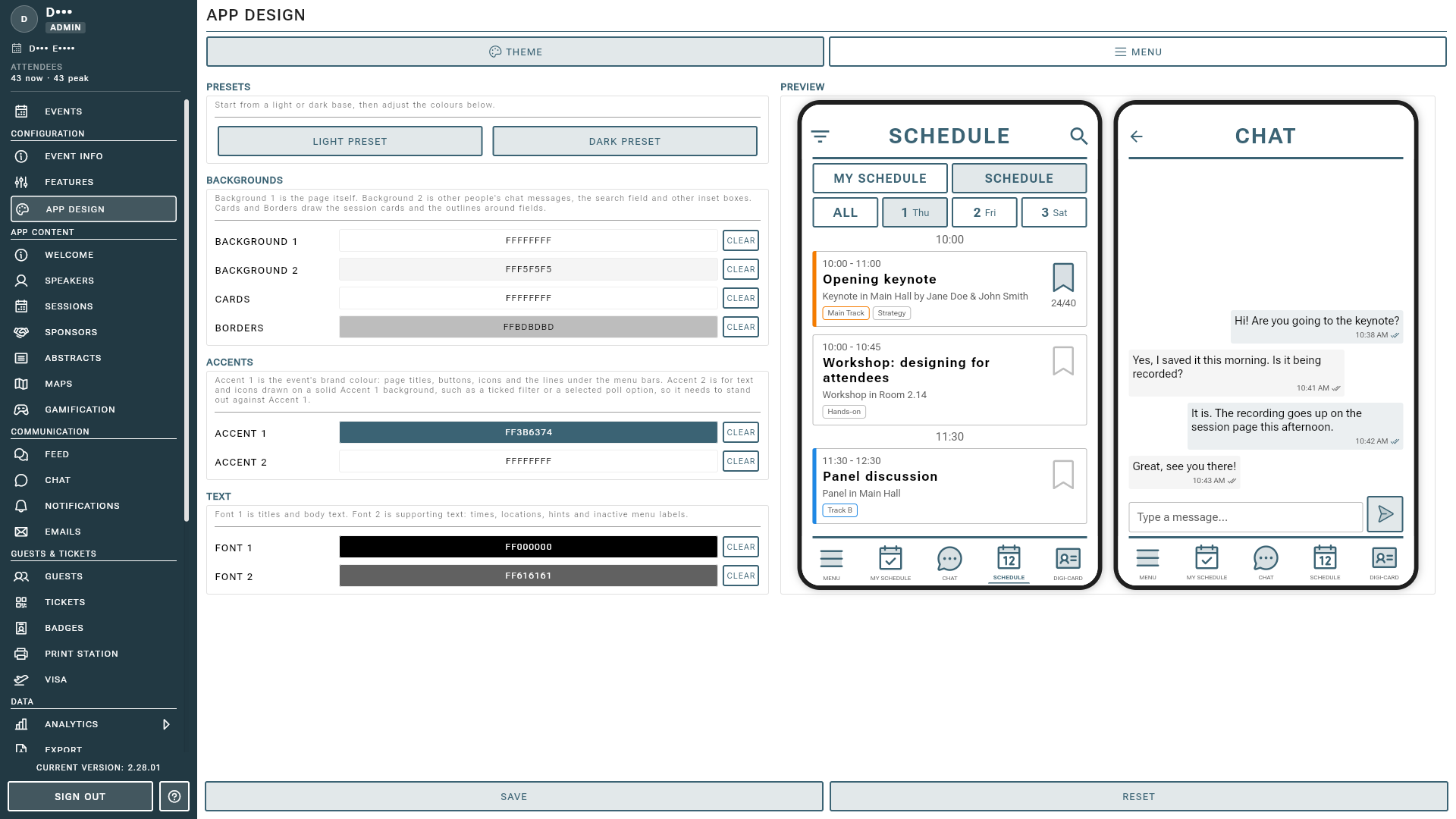
The colours of your attendee app are set on the THEME tab of App Design. Access it by selecting App Design from the sidebar under the Configuration section. The phone beside the colours shows a schedule and a chat screen as your attendees will see them, and updates as you edit.
Presets
Start from LIGHT PRESET or DARK PRESET, then adjust the colours below to your brand.
Backgrounds
- Background 1: the page itself.
- Background 2: other people’s chat messages, the search field and other inset boxes.
- Cards: the session cards and other cards.
- Borders: the outlines around cards and fields.
Accents
- Accent 1: your event’s brand colour, used for page titles, buttons, icons and the lines under the menu bars.
- Accent 2: text and icons drawn on a solid Accent 1 background, such as a ticked filter or a selected poll option, so it needs to stand out against Accent 1.
Text
- Font 1: titles and body text.
- Font 2: supporting text: times, locations, hints and inactive menu labels.
Tip
Your colours reach the app when you press SAVE. RESET takes the page back to the colours that are saved.
Tips
- Use your event’s official brand colours for a professional and consistent look.
- Check that Accent 2 is easy to read on Accent 1, and Font 2 on your backgrounds: the preview shows both.
- The bookmark buttons and the time shown on each session are switched on the Features page; the preview shows them as they are set there.
For advanced theme options or help with custom branding, contact support.